


How to copy a folder in Google Drive
Did you ever need to copy a folder in your Google Drive, but didn't know how? We'll tell you how to copy your entire folder and its contents or just the structure, in this detailed guide.
Introduction
Google Drive is a great place to store your files and make them accessible from any device. There are many reasons why you may want to copy your Google Drive folder and its content. Maybe it's backup, or you're switching accounts, or you're doing some project that requires your Drive folder and files to be duplicated. Whatever the reason for copying, no more old workarounds that required us to painstakingly “Make a copy” of each and every file and move it to a new folder. However, Google recently added a way for Shared Drive's manager to copy folders, but it is quite limited and end-users still can not move folders.
There are two ways you can copy a folder in Google Drive:
- Use a Google Drive add-on like Folgo to help you create a copy. This add-on gives you more control over what you want to copy. It can also retain file/folder permissions during the copy process. In this detailed guide, we will take you through this option with many practical examples.
- Use Google Drive app for Desktop, but it only works partially copy. You can copy-and-paste only the non-Google formatted files, like PDFs and CSV in Google Drive. (If you want to know more about this option, jump out to read the end of this guide.)
Why copying folders matters
A clean folder copy can save a lot of time when you need to reuse an existing structure. Instead of rebuilding folders manually, re-uploading files, or sharing everything again, you can duplicate your content and keep it organized from the start.
This is useful when you want to:
- Reuse a project folder for a new client or team.
- Create a new workspace from an existing template.
- Back up important Drive content.
- Duplicate training, onboarding, or administrative folders.
- Keep the same folder structure while preparing a new version of your work.
For teams and Google Workspace users, this can make a big difference. A folder is often more than just a place to store files. It contains structure, access rules, shared documents, and sometimes links between files. Copying it properly helps avoid missing files, broken organization, or manual permission work.
Copy folders faster with Folgo
Folgo is a powerful add-on for Google Drive, which makes it easy for you to do many file management tasks on Google Drive, including copy/duplicate folders. Folgo is built directly for Google Drive and Google Workspace. You do not need an external platform, a complex setup, or a third-party workspace to manage your files.
You can copy an entire folder hierarchy and optionally files and permissions in 5 simple steps!
Here is a step-by-step quick guide.
- Install Folgo, add-on for Google Drive from Google Workspace Marketplace
- Select the source folder you want to copy
- Select the destination folder
- Configure additional parameters (optional)
- Press "Copy" and let Folgo handle the rest for you!
Folgo also generates a Google Sheet report, so you can review what was copied and quickly identify anything that needs attention.
For a detailed guide, visit our Help Center page.
Folgo is an easier (and safer) way to copy folders in Google Drive
Folgo is fully integrated with Google Drive and Google Workspace. There is no external platform to set up, and you can work directly from your Google environment. Therefore, no setup nor technical skills are required. Folgo is a user-friendly tool!
Our tool is officially Recommended for Google Workspace and has undergone a rigorous audit by a third-party security assessor selected by Google, known as the Cloud Application Security Assessment (CASA). Learn more.
Furthermore, Folgo only uses the permissions needed to run the action you choose. Your data is not sold, used for advertising, or moved to a third-party workspace for you to manage it. Check this page for more information.
Can I copy folder with Google Drive app for Desktop?
No. It may seem easier to work on folder in Google Drive the same way you'd copy any other folder of files. But copying only works for the real files or the files with viable extensions like, PDF, csv, etc. So, this method doesn’t really help with copying Google docs with file extensions .gdoc, .gsheet, .gslides, .gform. If you attempt to copy and paste a folder with these file extensions, you will get this error:
"Could not find this item.
This is no longer located in [Path]. Verify the item’s location and try again."
Hence, Google Drive app doesn’t really help in making a copy of the Google Drive folders.
Tip: Only for authorized G Suite for Education Accounts
A school that uses Google Workspace for education can let its graduating students, copy or transfer their documents and emails to their personal Google Account. The school administrator has to make special settings and data transfer permissions to enable it for their students. If you are a school senior, here is how you can copy content from your school account to another account.
Free trial & Pricing
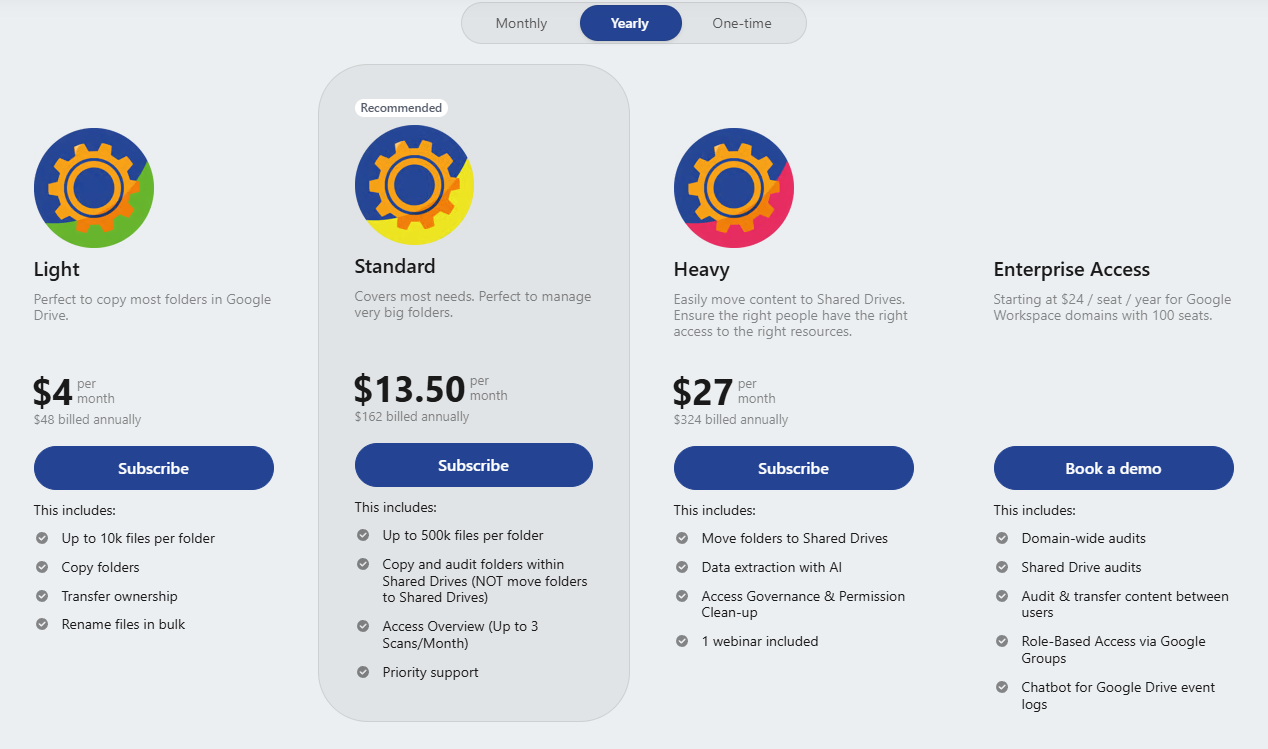
Folgo is free to try. You can try copying folders and explore other powerful features for up to 30 days. During the free trial, you can copy folders with up to 100 files.
Beyond these limits, you may need to buy a suitable pricing plan depending on the folder size you want to copy. There are two public tiers: up to 10k files and up to 500k files. For heavy usage, please contact the Folgo team at support@folgo.app directly.
Conclusion
Google gives users limited options for copying folders, which requires lots of permissions. You may be trying hard ways and different workarounds so far. In this guide, you have seen a couple of options and how effective are they with cloning a Google Drive folder.
The biggest takeaway from this detailed guide is that, you can use Folgo, add-on for Google Drive, to take the pain out of manual and other ineffective workarounds. You have seen how to install and set up Folgo and how you can choose and control what you want to copy. Don’t hesitate to install Folgo and give it a try! Before you know it, you'll be copying your Google Drive folders (and this is only one of the features).